Hi again!
Extracting image from a background has always been one of the common task in photoshop. You could cut out an object you like and put in another background of your choice! There are so many channels to extract a picture, but the method depends on the 1) background and 2) subject.
Here is the list:
#1: PEN TOOL
Open image in photoshop. Under Layers, double click on the Background to Layer 0. Use the Pen Tool and outline the shape of the object, swan. Zoom in when doing so. After that, under Paths, load path as selection. Make sure Layer 0 is highlighted, then click Select > Inverse and Delete to remove background outside swan.


Pictures Most Suitable for Pen Tool Extraction:
Complex, crowded background

NEXT,
#2: FILTER > EXTRACT


Open image in Photoshop. Under Layers, double click on the Background to Layer 0.
Click Filter > Extract.


Pictures Most Suitable for Filter Extraction:
Subject with smooth and clear, defined edges
&
Background with minimal noise or with one or more color tones


 Click Select > Color Range. Choose Selection. Adjust the Fuzziness to ensure the object in this case, birds white in color and background black in color. In other words, ensure both colors are distinguished: black and white. Click OK.


See you! :)
Click Filter > Extract.

Use the Edge Highlighter Tool to outline the object in this case, rose. Zoom to increase image size. Then, use the Fill Tool to fill up the area of the rose you want to extract. Done, click OK.

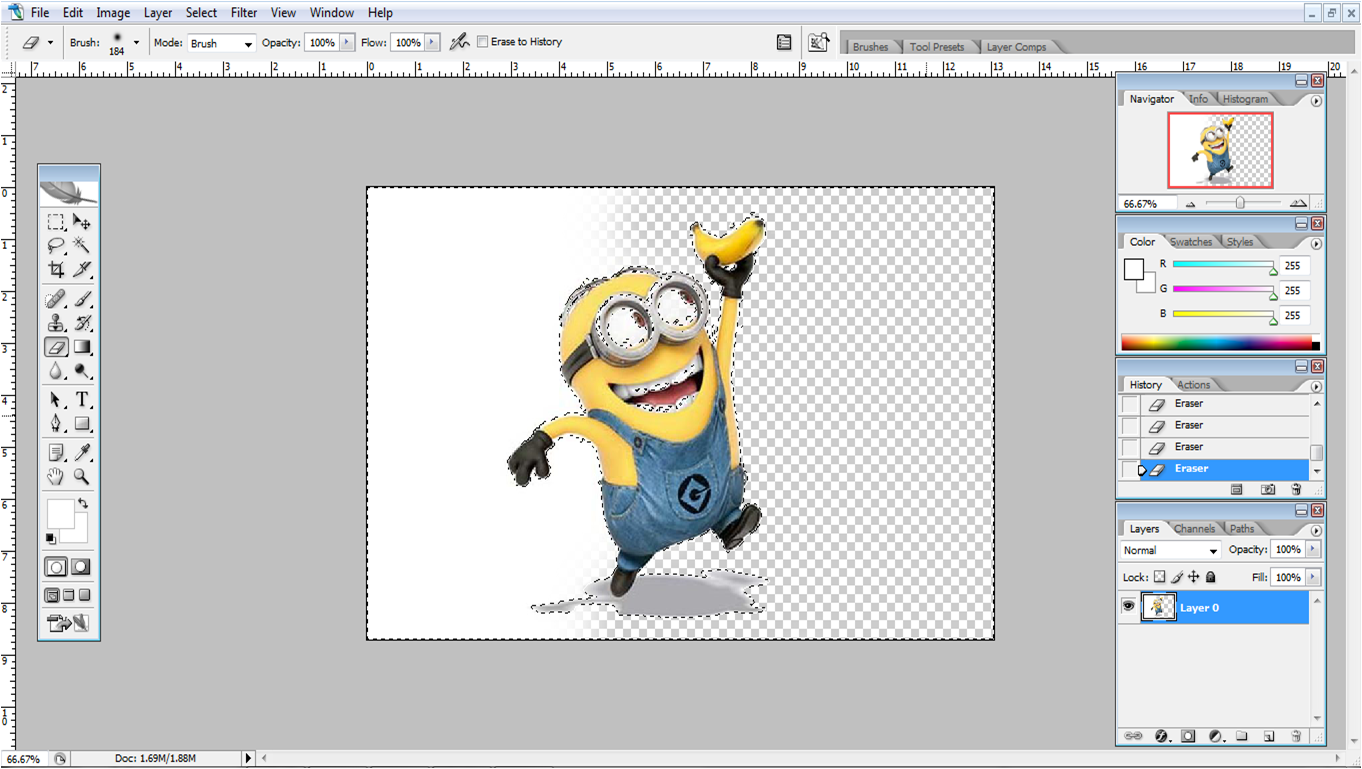
If there are missing or extra details, use the History Brush Tool or Eraser Tool to restore or polish the surface. Zoom in to be precise.

Final Product.

Subject with smooth and clear, defined edges
&
Background with minimal noise or with one or more color tones
NEXT,
#3: COLOR RANGE

Open image in Photoshop. Under Layers, double click on the Background to Layer 0.

Click Select > Inverse. Press Delete (x3) to remove the background completely.
You get a transparent background!
Pictures Most Suitable for Color Range Extraction:
Background or subject in 1 solid color
Hope you have a better idea on what photos are suitable for what types of extraction by now! If you google, choose your pictures wisely and if you are the photographer, have an idea of the type of extraction before taking a photo!
See you! :)